Write the requirements in Tasks. Let AI bring back the results.
When we use AI for development, we often describe the same work twice: once in a task manager, then again in a chat. When the AI finishes, the result stays in the conversation while the task list remains unchanged. The next session starts with another round of context.
We want Tasks to be a place where people and AI work together. You write the goals, requirements, and acceptance criteria. AI picks up the work, carries it out, verifies the results, and brings them back for you to review.
The hamsterbase-tasks Skill connects these steps. It teaches your AI agent how to read context from Tasks and how to submit completion requests. Your task list can then follow a piece of work from its initial requirements through delivery.
You set the goal. AI moves the work forward.
Consider a product development project. You create a project called “Website Improvements,” describe the goal in its notes, and group the work under a “Development” heading. Each task describes the current behavior, the expected behavior, and what you will check before accepting it.
These details help both you and the AI. “Fix the obscured mobile download button” gives you a clearer completion criterion than “Improve the website.” You can also attach a screenshot showing the problem so an agent with image tools can download and inspect it.
Once the requirements are ready, you can hand over an entire project, one heading, or a single task. You choose the scope, and the task structure helps the AI understand how the work fits together.
The screenshots below use test data in a separate demo environment. The approval request illustrates the delivery and review workflow.
Hand over a project: work toward a shared goal
A project captures a complete goal. Open it and use the # button at the top of the right-hand details panel to copy its ID. Paste that ID into a conversation with an agent that has the Skill installed.
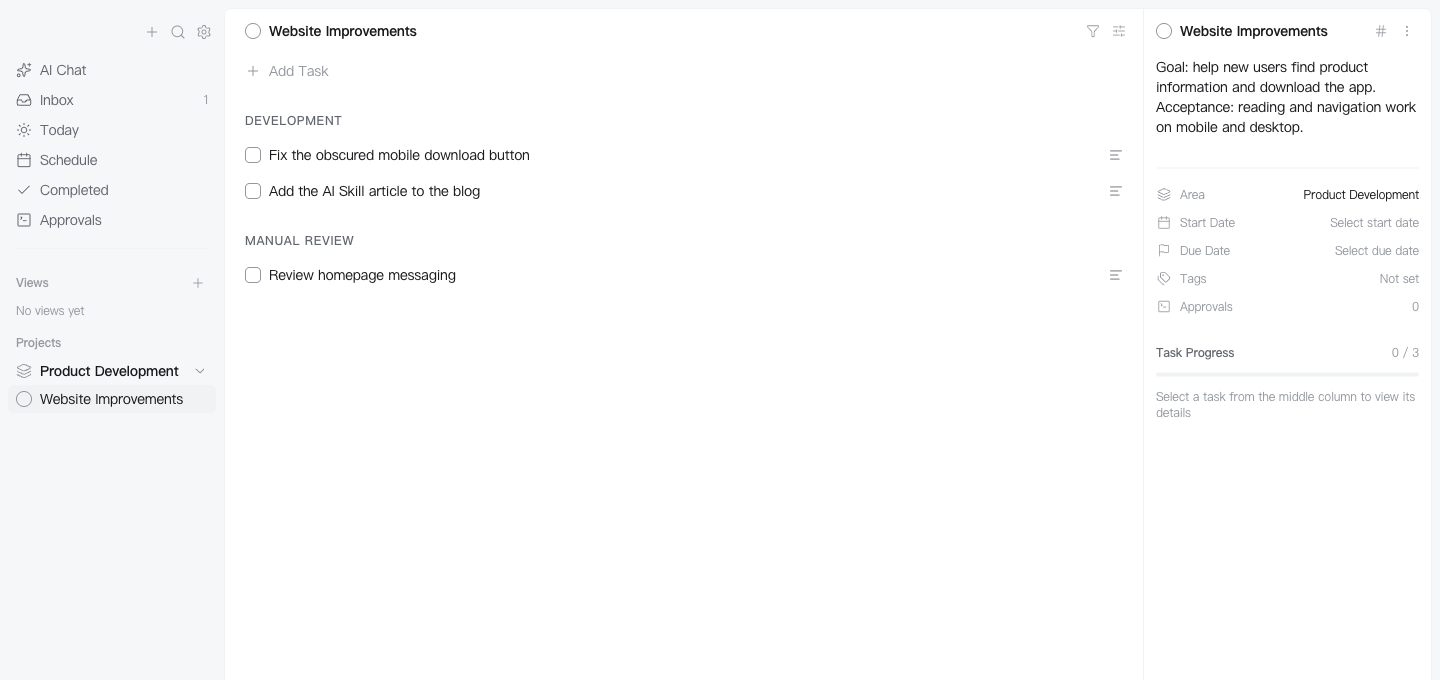
Read project HT#project-website and understand its goal and requirements. Within the scope I have authorized, carry out the development work you can complete independently. Verify each completed task and submit it for completion approval. Leave decisions that need my judgment to me.
The project ID gives the AI a clear scope. It can inspect the structure, read individual tasks, and plan its work around their requirements and dependencies. Results can still be submitted task by task, so you can review each one separately.
Hand over a heading: delegate one stage
You may want AI to handle the “Development” heading while keeping “Manual Review” for yourself. Click the heading in the middle list to open its details, then use the # button at the top to copy its ID.
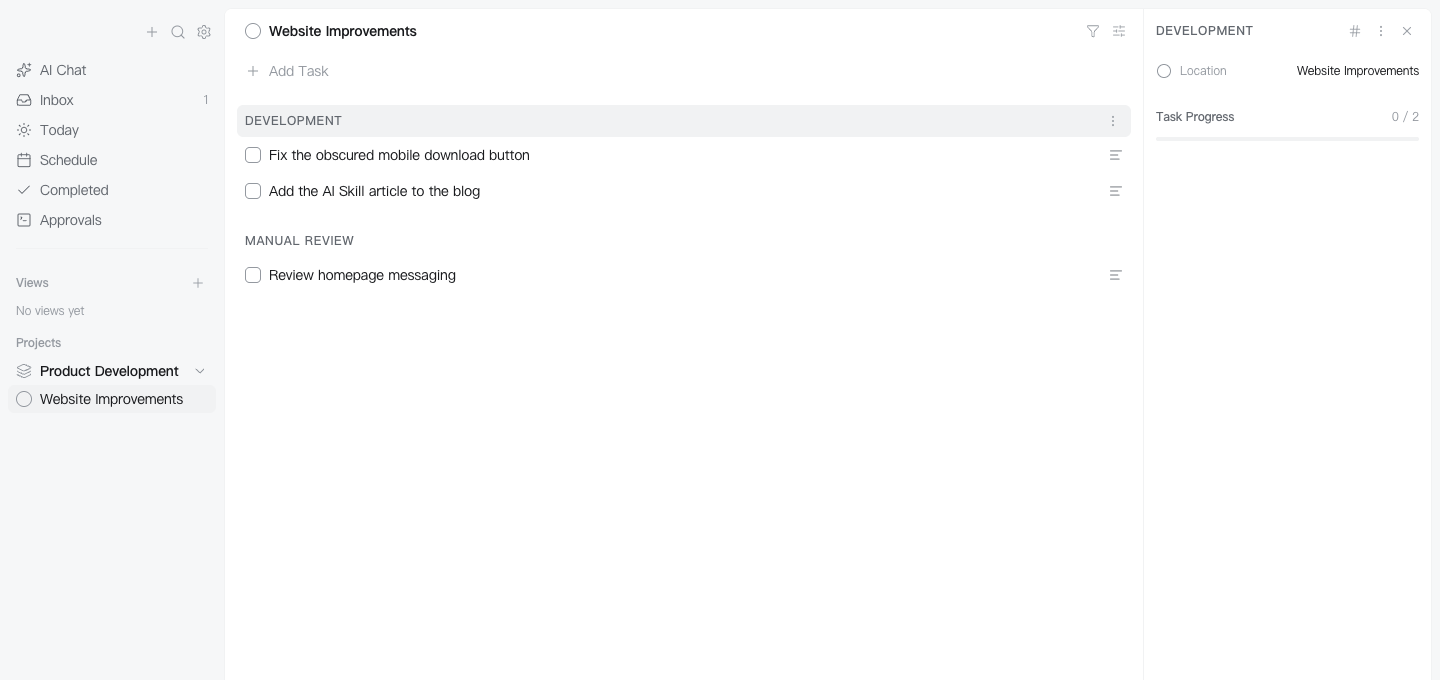
Read heading HT#heading-development and work through its development tasks. Read each task's notes and attachments first. After completing and verifying each task, submit a completion request with the results.
Headings let you delegate by stage, such as development followed by review. You can keep the AI's work within that group without copying every task into the conversation.
Hand over a task: fulfill a specific requirement
For a single issue, select the task and click the # button at the top of its details panel. Its ID identifies the exact item, even when several tasks share the same title.
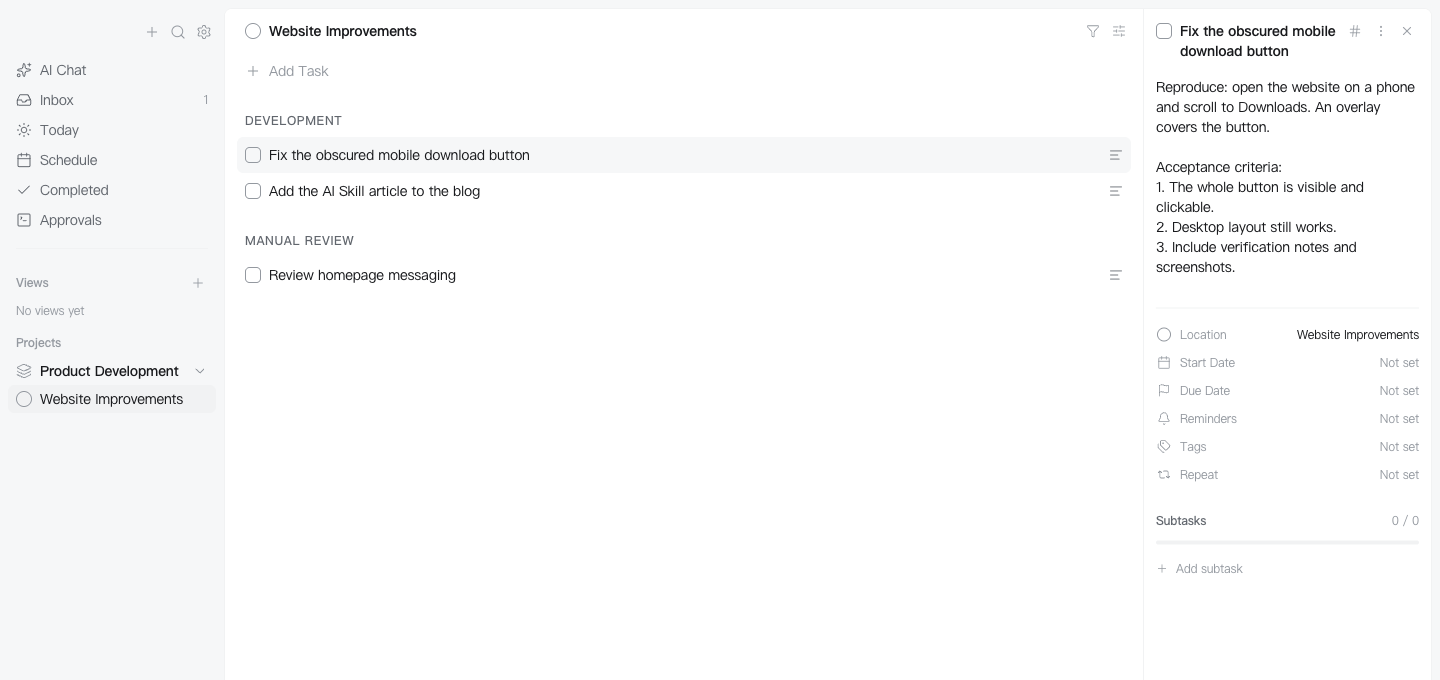
Complete task HT#task-download. Read the reproduction steps and acceptance criteria. After fixing the issue, check the mobile and desktop layouts, attach your verification notes and screenshots, and submit a completion request.
An agent with the appropriate tools can investigate the problem, change the code, run checks, and inspect the actual page. The Skill connects the task to the delivery process; the ability to do the work comes from the agent's tools, accessible workspace, and your authorization.
Let AI read the whole task list
When you want the AI to work across a broader scope, you can ask it to read every unfinished task in the current database:
Read all unfinished tasks in the current database, including the inbox, areas, projects, and future tasks. Use their notes and attachments to carry out work you can complete independently within my authorization. Verify each result before submitting a completion request, with an explanation and screenshots where useful. Leave tasks unfinished if they lack information, have unmet dependencies, or need my involvement, and explain why.
This explicitly includes future tasks because the default list queries hide them. Reading the full list provides context; execution should still respect dates and dependencies. Your instruction starts this round of work, and both the agent and the Tasks desktop app need to remain running.
AI submits results. You review them.
“Done” should come with something you can check. For development work, that might be an explanation of the implementation, relevant check results, and screenshots of the actual behavior. The Skill instructs the agent to finish and verify the work before submitting a completion request, and to describe results it has actually checked.
The example below includes an explanation and an image. You can review the task, the completion notes, and the screenshot in one place, then approve or reject the request.
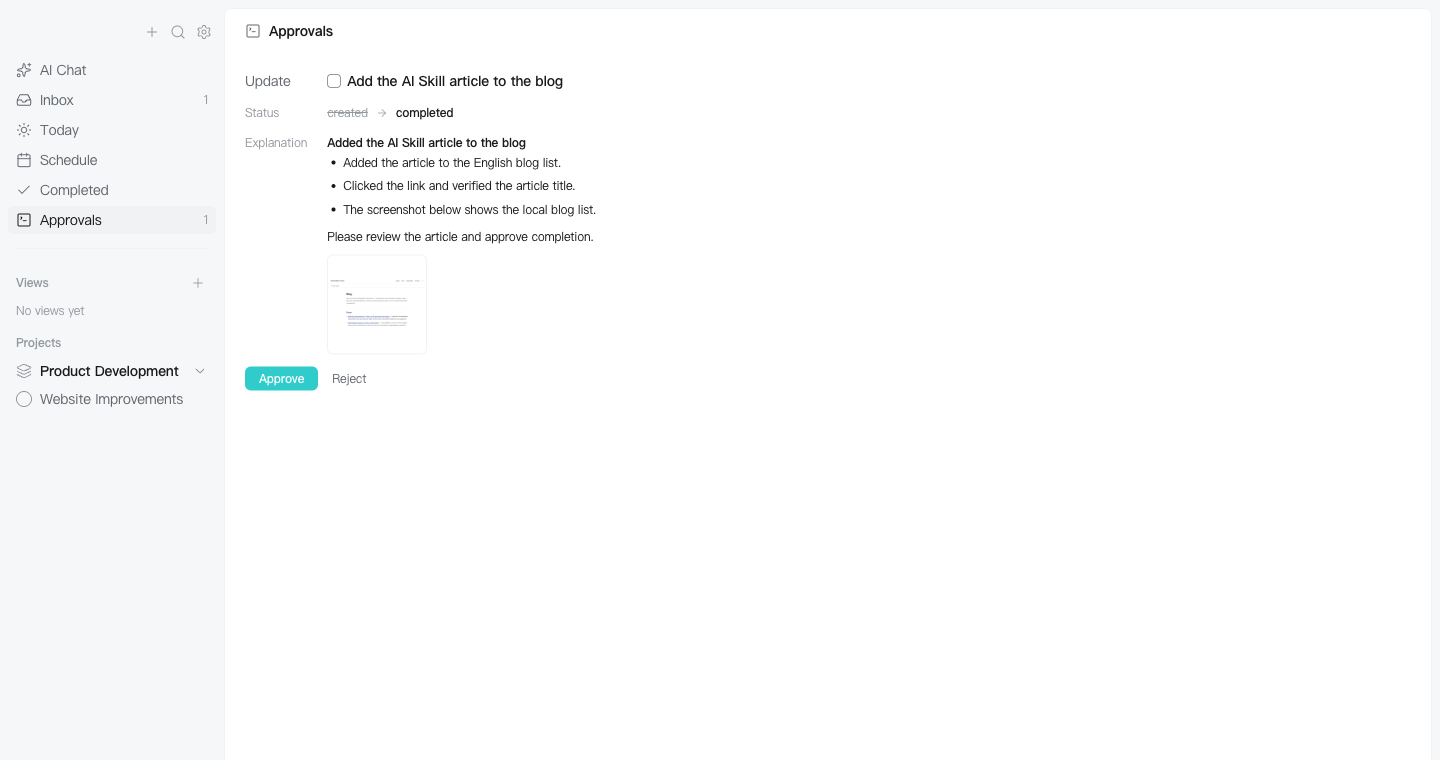
The task stays unfinished when AI submits the request. It is marked complete only after you approve it. If the result falls short, reject the request, add the remaining issues, and ask the agent to continue.
For example, the AI may have fixed the obscured download button, but your review reveals a problem in landscape orientation. Add those reproduction steps to the original task. The next round of work can continue around the same requirement until it meets the acceptance criteria.
Approval explanations and images are removed when the request is resolved. Save any links or conclusions you need to keep in the task notes separately. Tasks approval controls changes to task status; the agent's actual code changes and generated files remain subject to its own tools and authorization mechanisms.
Install the Skill
Use an agent that supports local commands and Skills, and open the HamsterBase Tasks desktop app. Select the database you want the AI to work with, then send the agent this prompt:
Install the HamsterBase Tasks Skill:

1. Make sure Node.js 20 or newer is installed, then run:
   npm install -g @hamsterbase/tasks-cli
2. Run hamsterbase-tasks skill-dir --json to get dir and version.
3. Copy the whole directory at dir into your skills directory,
   keeping the folder name hamsterbase-tasks.
4. Read its SKILL.md and follow it whenever you work on my Tasks.

The HamsterBase Tasks desktop app will remain open.
The Skill ships with the CLI. Your agent needs to copy the entire directory to a location it supports and load it. The desktop Approvals page also provides a setup prompt when there are no pending requests. Task contents and attachments may be sent to your chosen model provider as context, depending on the agent's configuration.
Start with one task that has clear acceptance criteria. As you become familiar with the workflow, expand the scope to a heading, a project, or your whole list. You keep the requirements and acceptance criteria in Tasks. AI brings back the completed work and verification results.